This sample chapter from Routing and Switching Essentials v6 Companion Guide, answer the question, “What does a router do with a packet received from one network and destined for another network?” Details of the routing table will be examined, including connected, static, and dynamic routes.
Objectives
Upon completion of this chapter, you will be able to answer the following questions:
What are the primary functions and features of a router?
How do you connect devices for a small, routed network?
How do you configure basic settings on a router to route between two directly connected networks, using CLI?
How do you verify connectivity between two networks that are directly connected to a router?
What is the encapsulation and de-encapsulation process used by routers when switching packets between interfaces?
What is the path determination function of a router?
What are the routing table entries for directly connected networks?
How does a router build a routing table of directly connected networks?
How does a router build a routing table using static routes?
How does a router build a routing table using a dynamic routing protocol?
Key Terms
This chapter uses the following key terms. You can find the definitions in the Glossary.
topology Page 5
physical topology Page 5
logical topology Page 5
speed Page 5
availability Page 5
scalability Page 5
reliability Page 6
mean time between failures (MTBF) Page 6
routing table Page 7
IOS Page 7
volatile Page 7
nonvolatile Page 7
RAM Page 8
ROM Page 8
NVRAM Page 8
flash Page 8
Point-to-Point Protocol (PPP) Page 10
static routes Page 11
dynamic routing protocols Page 11
process switching Page 11
fast switching Page 12
fast-switching cache Page 12
Cisco Express Forwarding (CEF) Page 12
Forwarding Information Base (FIB) Page 12
adjacency table Page 12
VoIP Page 15
wireless access points (WAP) Page 15
Gateway of Last Resort Page 17
USB-to-RS-232 compatible serial port adapter Page 21
USB Type-A to USB Type-B (mini-B USB) Page 21
switched virtual interface (SVI) Page 22
High-Speed WAN Interface Card (HWIC) slots Page 24
IPv6 link-local address Page 26
IPv6 global unicast address Page 26
EUI-64 Page 27
loopback interface Page 29
PPP Page 39
ICMPv6 Neighbor Solicitation and Neighbor Advertisement messages Page 40
neighbor cache Page 40
metric Page 45
equal cost load balancing Page 46
unequal cost load balancing Page 47
administrative distance (AD) Page 47
directly connected routes Page 49
remote routes Page 49
local route interfaces Page 50
directly connected interfaces Page 50
default static route Page 58
Introduction (1.0.1.1)
Networks allow people to communicate, collaborate, and interact in many ways. Networks are used to access web pages, talk using IP telephones, participate in video conferences, compete in interactive gaming, shop using the Internet, complete online coursework, and more.
Ethernet switches function at the data link layer, Layer 2, and are used to forward Ethernet frames between devices within the same network. However, when the source IP and destination IP addresses are on different networks, the Ethernet frame must be sent to a router.
A router connects one network to another network. The router is responsible for the delivery of packets across different networks. The destination of the IP packet might be a web server in another country or an email server on the LAN.
The router uses its routing table to determine the best path to use to forward a packet. It is the responsibility of the routers to deliver those packets in a timely manner. The effectiveness of internetwork communications depends, to a large degree, on the ability of routers to forward packets in the most efficient way possible.
When a host sends a packet to a device on a different IP network, the packet is forwarded to the default gateway because a host device cannot communicate directly with devices outside of the local network. The default gateway is the intermediary device that routes traffic from the local network to devices on remote networks. It is often used to connect a local network to the Internet.
This chapter will answer the question, “What does a router do with a packet received from one network and destined for another network?” Details of the routing table will be examined, including connected, static, and dynamic routes.
Because the router can route packets between networks, devices on different networks can communicate. This chapter introduces the router, its role in networks, its main hardware and software components, and the routing process. Exercises that demonstrate how to access the router, configure basic router settings, and verify settings are provided.
 Activity 1.0.1.2: Do We Really Need a Map?
This modeling activity asks you to research travel directions from source to destination. Its purpose is to compare those types of directions to network routing directions.
Scenario
Using the Internet and Google Maps, located at http://maps.google.com, find a route between the capital city of your country and some other distant town or between two places within your own city. Pay close attention to the driving or walking directions that Google Maps suggests.
Notice that in many cases, Google Maps suggests more than one route between the two locations you chose. It also allows you to put additional constraints on the route, such as avoiding highways or tolls.
Copy at least two route instructions supplied by Google Maps for this activity. Place your copies into a word processing document and save it for use with the next step.
Open the .pdf accompanying this modeling activity and complete it with a fellow student. Discuss the reflection questions listed on the .pdf and record your answers.
Be prepared to present your answers to the class.
Router Initial Configuration (1.1)
A router must be configured with specific settings before it can be deployed. New routers are not configured. They must be initially configured using the console port.
In this section, you learn how to configure basic settings on a router.
Router Functions (1.1.1)
Modern routers are capable of providing many network connectivity functions. The focus of this topic is to examine how routers route packets to their destinations.
Characteristics of a Network (1.1.1.1)
Networks have had a significant impact on our lives. They have changed the way we live, work, and play. They allow us to communicate, collaborate, and interact in ways we never did before. We use the network in a variety of ways, including web applications, IP telephony, video conferencing, interactive gaming, electronic commerce, education, and more.
As shown in Figure 1-1, there are many key structures and performance-related characteristics referred to when discussing networks:
)
Figure 1-1 Network Characteristics
Topology—There are physical and logical topologies. The physical topology is the arrangement of the cables, network devices, and end systems. It describes how the network devices are actually interconnected with wires and cables. The logical topology is the path over which the data is transferred in a network. It describes how the network devices appear connected to network users.
Speed—Speed is a measure of the data rate in bits per second (b/s) of a given link in the network.
Cost—Cost indicates the general expense for purchasing of network components, and installation and maintenance of the network.
Security—Security indicates how protected the network is, including the information that is transmitted over the network. The subject of security is important, and techniques and practices are constantly evolving. Consider security whenever actions are taken that affect the network.
Availability—Availability is the likelihood that the network is available for use when it is required.
Scalability—Scalability indicates how easily the network can accommodate more users and data transmission requirements. If a network design is optimized to only meet current requirements, it can be very difficult and expensive to meet new needs when the network grows.
Reliability—Reliability indicates the dependability of the components that make up the network, such as the routers, switches, PCs, and servers. Reliability is often measured as a probability of failure or as the mean time between failures (MTBF).
These characteristics and attributes provide a means to compare different networking solutions.
Why Routing? (1.1.1.2)
How does clicking a link in a web browser return the desired information in mere seconds? Although there are many devices and technologies collaboratively working together to enable this, the primary device is the router. Stated simply, a router connects one network to another network.
Communication between networks would not be possible without a router determining the best path to the destination and forwarding traffic to the next router along that path. The router is responsible for the routing of traffic between networks.
In the topology in Figure 1-2, the routers interconnect the networks at the different sites.
)
Figure 1-2 The Router Connection
When a packet arrives on a router interface, the router uses its routing table to determine how to reach the destination network. The destination of the IP packet might be a web server in another country or an email server on the LAN. It is the responsibility of routers to deliver those packets efficiently. The effectiveness of internetwork communications depends, to a large degree, on the ability of routers to forward packets in the most efficient way possible.
Routers Are Computers (1.1.1.3)
Most network-capable devices (such as computers, tablets, and smartphones) require the following components to operate, as shown in Figure 1-3:
CPU
Operating system (OS)
Memory and storage (RAM, ROM, NVRAM, Flash, hard drive)
)
Figure 1-3 The Router Connection
A router is essentially a specialized computer. It requires a CPU and memory to temporarily and permanently store data to execute operating system instructions, such as system initialization, routing functions, and switching functions.
Cisco devices also require an OS; Cisco devices commonly use the Cisco IOS as its system software.
Router memory is classified as volatile or nonvolatile. Volatile memory loses its content when the power is turned off, whereas nonvolatile memory does not lose its content when the power is turned off.
Table 1-1 summarizes the types of router memory, the volatility, and examples of what is stored in each.
Table 1-1 Router Memory
Memory |
Description |
RAM |
Volatile memory that provides temporary storage for various applications and processes including the following:
|
ROM |
Nonvolatile memory that provides permanent storage for the following:
|
NVRAM |
Nonvolatile memory that provides permanent storage for the following:
|
Flash |
Nonvolatile memory that provides permanent storage for the following:
|
Unlike a computer, a router does not have video adapters or sound card adapters. Instead, routers have specialized ports and network interface cards to interconnect devices to other networks. Figure 1-4 identifies some of these ports and interfaces found on a Cisco 1941 Integrated Service Router (ISR).
)
Figure 1-4 Back Panel of a Router
Routers Interconnect Networks (1.1.1.4)
Most users are unaware of the presence of numerous routers on their own network or on the Internet. Users expect to be able to access web pages, send emails, and download music, regardless of whether the server accessed is on their own network or on another network. Networking professionals know that it is the router that is responsible for forwarding packets from network to network, from the original source to the final destination.
A router connects multiple networks, which means that it has multiple interfaces that each belong to a different IP network. When a router receives an IP packet on one interface, it determines which interface to use to forward the packet to the destination. The interface that the router uses to forward the packet may be the final destination, or it may be a network connected to another router that is used to reach the destination network.
In Figure 1-5, routers R1 and R2 are responsible for receiving the packet on one network and forwarding the packet out another network toward the destination network.
)
Figure 1-5 Routers Connect
Each network that a router connects to typically requires a separate interface. These interfaces are used to connect a combination of both LANs and WANs. LANs are commonly Ethernet networks that contain devices, such as PCs, printers, and servers. WANs are used to connect networks over a large geographical area. For example, a WAN connection is commonly used to connect a LAN to the Internet service provider (ISP) network.
Notice that each site in Figure 1-6 requires the use of a router to interconnect to other sites. Even the Home Office requires a router. In this topology, the router located at the Home Office is a specialized device that performs multiple services for the home network.
)
Figure 1-6 The Router Connection
Routers Choose Best Paths (1.1.1.5)
Following are the primary functions of a router:
Determine the best path to send packets
Forward packets toward their destination
The router uses its routing table to determine the best path to use to forward a packet. When the router receives a packet, it examines the destination address of the packet and uses the routing table to search for the best path to that network. The routing table also includes the interface to be used to forward packets for each known network. When a match is found, the router encapsulates the packet into the data link frame of the outgoing or exit interface, and the packet is forwarded toward its destination.
It is possible for a router to receive a packet that is encapsulated in one type of data link frame and to forward the packet out of an interface that uses a different type of data link frame. For example, a router may receive a packet on an Ethernet interface, but it must forward the packet out of an interface configured with the Point-to-Point Protocol (PPP). The data link encapsulation depends on the type of interface on the router and the type of medium to which it connects. The different data link technologies that a router can connect to include Ethernet, PPP, Frame Relay, DSL, cable, and wireless (802.11, Bluetooth, and so on).
In Figure 1-7, notice that it is the responsibility of the router to find the destination network in its routing table and forward the packet toward its destination.
)
Figure 1-7 How the Router Works
In this example, router R1 receives the packet encapsulated in an Ethernet frame. After de-encapsulating the packet, R1 uses the destination IP address of the packet to search its routing table for a matching network address. After a destination network address is found in the routing table, R1 encapsulates the packet inside a PPP frame and forwards the packet to R2. R2 performs a similar process.
Packet-Forwarding Mechanisms (1.1.1.6)
Routers support three packet-forwarding mechanisms:
Process switching—Shown in Figure 1-8, this is an older packet-forwarding mechanism still available for Cisco routers. When a packet arrives on an interface, it is forwarded to the control plane where the CPU matches the destination address with an entry in its routing table, and then it determines the exit interface and forwards the packet. It is important to understand that the router does this for every packet, even if the destination is the same for a stream of packets. This process-switching mechanism is slow and rarely implemented in modern networks.
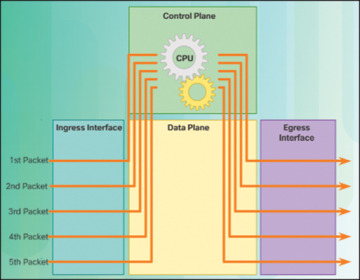
Figure 1-8 Process Switching
Fast switching—Shown in Figure 1-9, this is a common packet-forwarding mechanism that uses a fast-switching cache to store next-hop information. When a packet arrives on an interface, it is forwarded to the control plane, where the CPU searches for a match in the fast-switching cache. If it is not there, it is process-switched and forwarded to the exit interface. The flow information for the packet is also stored in the fast-switching cache. If another packet going to the same destination arrives on an interface, the next-hop information in the cache is reused without CPU intervention.
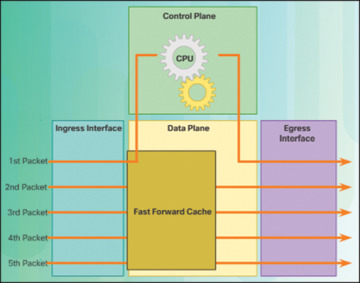
Figure 1-9 Fast Switching
Cisco Express Forwarding (CEF)—Shown in Figure 1-10, CEF is the most recent and preferred Cisco IOS packet-forwarding mechanism. Like fast switching, CEF builds a Forwarding Information Base (FIB), and an adjacency table.
However, the table entries are not packet-triggered like fast switching but change-triggered, such as when something changes in the network topology. Therefore, when a network has converged, the FIB and adjacency tables contain all the information a router would have to consider when forwarding a packet. The FIB contains precomputed reverse lookups, next-hop information for routes including the interface, and Layer 2 information. CEF is the fastest forwarding mechanism and the preferred choice on Cisco routers.
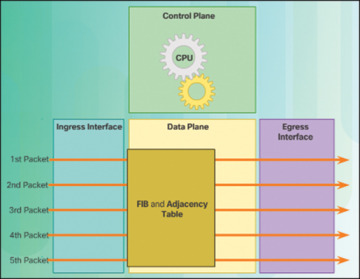
Figure 1-10 Cisco Express Forwarding
)
)
)
Assume that all five packets in a traffic flow are going to the same destination. As shown in Figure 1-8, with process switching, each packet must be processed by the CPU individually. Contrast this with fast switching, shown in Figure 1-9. With fast switching, notice how only the first packet of a flow is process-switched and added to the fast-switching cache. The next four packets are quickly processed based on the information in the fast-switching cache. Finally, in Figure 1-10, CEF builds the FIB and adjacency tables, after the network has converged. All five packets are quickly processed in the data plane.
A common analogy used to describe the three packet-forwarding mechanisms is as follows:
Process switching solves a problem by doing math long hand, even if it is the identical problem.
Fast switching solves a problem by doing math long hand one time and remembering the answer for subsequent identical problems.
CEF solves every possible problem ahead of time in a spreadsheet.
 Activity 1.1.1.7: Identify Router Components
Refer to the online course to complete this activity.
 Packet Tracer 1.1.1.8: Using Traceroute to Discover the Network
The company you work for has acquired a new branch location. You asked for a topology map of the new location, but apparently one does not exist. However, you have username and password information for the new branch’s networking devices, and you know the web address for the new branch’s server. Therefore, you will verify connectivity and use the tracert command to determine the path to the location. You will connect to the edge router of the new location to determine the devices and networks attached. As a part of this process, you will use various show commands to gather the necessary information to finish documenting the IP addressing scheme and create a diagram of the topology.
Lab 1.1.1.9: Mapping the Internet
In this lab, you will complete the following objectives:
Part 1: Determine Network Connectivity to a Destination Host
Part 2: Trace a Route to a Remote Server Using Tracert
Connect Devices (1.1.2)
LAN hosts typically connect to a router using Layer 3 IP addresses. The focus of this topic is to examine how devices connect to a small, routed network.
Connect to a Network (1.1.2.1)
Network devices and end users typically connect to a network using a wired Ethernet or wireless connection. Refer to Figure 1-11 as a sample reference topology. The LANs in the figure serve as an example of how users and network devices can connect to networks.
)
Figure 1-11 Sample LAN and WAN Connections
Home Office devices can connect as follows:
Laptops and tablets connect wirelessly to a home router.
A network printer connects using an Ethernet cable to the switch port on the home router.
The home router connects to the service provider cable modem using an Ethernet cable.
The cable modem connects to the ISP network.
The Branch site devices connect as follows:
Corporate resources (that is, file servers and printers) connect to Layer 2 switches using Ethernet cables.
Desktop PCs and VoIP phones connect to Layer 2 switches using Ethernet cables.
Laptops and smartphones connect wirelessly to wireless access points (WAP).
The WAPs connect to switches using Ethernet cables.
Layer 2 switches connect to an Ethernet interface on the edge router using Ethernet cables. An edge router is a device that sits at the edge or boundary of a network and routes between that network and another, such as between a LAN and a WAN.
The edge router connects to a WAN service provider (SP).
The edge router also connects to an ISP for backup purposes.
The Central site devices connect as follows:
Desktop PCs and VoIP phones connect to Layer 2 switches using Ethernet cables.
Layer 2 switches connect redundantly to multilayer Layer 3 switches using Ethernet fiber-optic cables (orange connections).
Layer 3 multilayer switches connect to an Ethernet interface on the edge router using Ethernet cables.
The corporate website server is connected using an Ethernet cable to the edge router interface.
The edge router connects to a WAN SP.
The edge router also connects to an ISP for backup purposes.
In the Branch and Central LANs, hosts are connected either directly or indirectly (via WAPs) to the network infrastructure using a Layer 2 switch.
Default Gateways (1.1.2.2)
To enable network access, devices must be configured with IP address information to identify the appropriate
IP address—Identifies a unique host on a local network.
Subnet mask—Identifies with which network subnet the host can communicate.
Default gateway—Identifies the IP address of the router to send a packet to when the destination is not on the same local network subnet.
When a host sends a packet to a device that is on the same IP network, the packet is simply forwarded out of the host interface to the destination device.
When a host sends a packet to a device on a different IP network, the packet is forwarded to the default gateway because a host device cannot communicate directly with devices outside of the local network. The default gateway is the destination that routes traffic from the local network to devices on remote networks. It is often used to connect a local network to the Internet.
The default gateway is usually the address of the interface on the router connected to the local network. The router maintains routing table entries of all connected networks as well as entries of remote networks, and it determines the best path to reach those destinations.
For example, if PC1 sends a packet to the Web Server located at 176.16.1.99, it would discover that the Web Server is not on the local network. It would therefore send the packet to the MAC address of its default gateway. The packet protocol data unit (PDU) at the top in Figure 1-12 identifies the source and destination IP and MAC addresses.
)
Figure 1-12 Getting the Pieces to the Correct Network
Document Network Addressing (1.1.2.3)
When designing a new network or mapping an existing network, document the network. At a minimum, the documentation should identify the following:
Device names
Interfaces used in the design
IP addresses and subnet masks
Default gateway addresses
This information is captured by creating two useful network documents:
Topology diagram—As shown in Figure 1-13, the topology diagram provides a visual reference that indicates the physical connectivity and logical Layer 3 addressing. Often created using diagramming software, such as Microsoft Visio.

Figure 1-13 Topology Diagram
An addressing table—A table, such as Table 1-2, is used to capture device names, interfaces, IPv4 addresses, subnet masks, and default gateway addresses.
)
Table 1-2 Addressing Table
Device |
Interface |
IP Address |
Subnet Mask |
Default Gateway |
R1 |
Fa0/0 |
192.168.1.1 |
255.255.255.0 |
N/A |
S0/0/0 |
192.168.2.1 |
255.255.255.0 |
N/A |
|
R2 |
Fa0/0 |
192.168.3.1 |
255.255.255.0 |
N/A |
S0/0/0 |
192.168.2.2 |
255.255.255.0 |
N/A |
|
PC1 |
N/A |
192.168.1.10 |
255.255.255.0 |
192.168.1.1 |
PC2 |
N/A |
192.168.3.10 |
255.255.255.0 |
192.168.3.1 |
Enable IP on a Host (1.1.2.4)
A host can be assigned IP address information in one of two ways:
Statically—The host is manually assigned a unique IP address, subnet mask, and default gateway. The DNS server IP address can also be configured.
Dynamically—The host receives its IP address information automatically from a DHCP server. The DHCP server offers the host a valid IP address, subnet mask, and default gateway information. The DHCP server may provide other information.
Figure 1-14 provides a static IPv4 configuration example.
)
Figure 1-14 Statically Assigning an IPv4 Address
Figure 1-15 provides a dynamic IPv4 address configuration examples.
)
Figure 1-15 Dynamically Assigning an IPv4 Address
Statically assigned addresses are commonly used to identify specific network resources, such as network servers and printers. They can also be used in smaller networks with few hosts. However, most host devices acquire their IPv4 address information by accessing a DHCPv4 server. In large enterprises, dedicated DHCPv4 servers providing services to many LANs are implemented. In a smaller branch or small office setting, DHCPv4 services can be provided by a Cisco Catalyst switch or a Cisco ISR.
Device LEDs (1.1.2.5)
Host computers connect to a wired network using a network interface and RJ-45 Ethernet cable. Most network interfaces have one or two LED link indicators next to the interface. The significance and meaning of the LED colors vary between manufacturers. However, a green LED typically means a good connection, whereas a blinking green LED indicates network activity.
If the link light is not on, there may be a problem with either the network cable or the network itself. The switch port where the connection terminates would also have an LED indicator lit. If one or both ends are not lit, try a different network cable.
Similarly, network infrastructure devices commonly use multiple LED indicators to provide a quick status view. For example, a Cisco Catalyst 2960 switch has several status LEDs to help monitor system activity and performance. These LEDs are generally lit green when the switch is functioning normally and lit amber when there is a malfunction.
Cisco ISRs use various LED indicators to provide status information. A Cisco 1941 router is shown in Figure 1-16.
)
Figure 1-16 Cisco 1941 LEDs
Table 1-3 lists the LED descriptions for the Cisco 1941 router.
Table 1-3 Cisco 1941 LED Descriptions
# |
Port |
LED |
Color |
Description |
1 |
GE0/0 and GE0/1 |
S (Speed) |
1 blink + pause |
Port operating at 10 Mb/s |
2 blink + pause |
Port operating at 100 Mb/s |
|||
3 blink + pause |
Port operating at 1000 Mb/s |
|||
L (Link) |
Green |
Link is active |
||
Off |
Link is inactive |
|||
2 |
Console |
EN |
Green |
Port is active |
Off |
Port is inactive |
|||
3 |
USA |
EN |
Green |
Port is active |
Off |
Port is inactive |
The LEDs on the router can help a network administrator quickly conduct some basic troubleshooting. Each device has a unique set of LEDs, and it is advisable that you become familiar with the significance of these LEDs. Consult the device-specific documentation for an accurate description of the LEDs.
Console Access (1.1.2.6)
In a working network environment, infrastructure devices are commonly accessed remotely using Secure Shell (SSH) or Hypertext Transfer Protocol Secure (HTTPS). Console access is really only required when initially configuring a device, or if remote access fails.
Console access requires the following:
Console cable—RJ-45-to-DB-9 serial cable or a USB serial cable
Terminal emulation software—Tera Term, PuTTY
The cable is connected between the serial port of the host and the console port on the device. Most computers and notebooks no longer include built-in serial ports; therefore, a USB port can establish a console connection. However, a special USB-to-RS-232 compatible serial port adapter is required when using the USB port.
The Cisco ISR G2 supports a USB serial console connection. To establish connectivity, a USB Type-A to USB Type-B (mini-B USB) is required, as well as an operating system device driver. This device driver is available from www.cisco.com. Although these routers have two console ports, only one console port can be active at a time. When a cable is plugged into the USB console port, the RJ-45 port becomes inactive. When the USB cable is removed from the USB port, the RJ-45 port becomes active.
The table in Figure 1-17 summarizes the console connection requirements.
)
Figure 1-17 Console Connection Requirements
Figure 1-18 displays the various ports and cables required.
)
Figure 1-18 Ports and Cables
Enable IP on a Switch (1.1.2.7)
Network infrastructure devices require IP addresses to enable remote management. Using the device IP address, the network administrator can remotely connect to the device using Telnet, SSH, HTTP, or HTTPS.
A switch does not have a dedicated interface to which an IP address can be assigned. Instead, the IP address information is configured on a virtual interface called a switched virtual interface (SVI).
For example, in Figure 1-19, the SVI on the Layer 2 switch S1 is assigned the IP address 192.168.10.2/24 and a default gateway of 192.168.10.1.
)
Figure 1-19 Configure the Switch Management Interface
Activity 1.1.2.8: Document an Addressing Scheme
Refer to the online course to complete this activity.
Packet Tracer 1.1.2.9: Documenting the Network
Background/Scenario
Your job is to document the addressing scheme and connections used in the Central portion of the network. You need to use a variety of commands to gather the required information.
Router Basic Settings (1.1.3)
Every network has unique settings that must be configured on a router. This topic introduces basic IOS commands that are required to configure a router.
Configure Basic Router Settings (1.1.3.1)
Cisco routers and Cisco switches are a lot alike. They support a similar modal operating system, similar command structures, and many of the same commands. In addition, both devices have similar initial configuration steps.
For instance, the following configuration tasks should always be performed:
Name the device—Distinguishes it from other routers.
Secure management access—Secures privileged EXEC, user EXEC, and remote access.
Configure a banner—Provides legal notification of unauthorized access.
Always save the changes on a router and verify the basic configuration and router operations.
Figure 1-20 shows the topology used for example configurations.
)
Figure 1-20 IPv4 Configuration Topology
Example 1-1 shows the basic router settings configured for R1.
Example 1-1 Basic Router Settings
Router# configure terminal
Enter configuration commands, one per line. End with CNTL/Z.
Router(config)# hostname R1
R1(config)# enable secret class
R1(config)# line console 0
R1(config-line)# password cisco
R1(config-line)# login
R1(config-line)# exit
R1(config)# line vty 0 4
R1(config-line)# password cisco
R1(config-line)# login
R1(config-line)# exit
R1(config)# service password-encryption
R1(config)# banner motd $ Authorized Access Only! $
R1(config)# end
R1# copy running-config startup-config
Destination filename [startup-config]?
Building configuration... [OK]
R1#
Configure an IPv4 Router Interface (1.1.3.2)
One distinguishing feature between switches and routers is the type of interfaces supported by each. For example, Layer 2 switches support LANs and, therefore, have multiple FastEthernet or Gigabit Ethernet ports.
Routers support LANs and WANs and can interconnect different types of networks; therefore, they support many types of interfaces. For example, G2 ISRs have one or two integrated Gigabit Ethernet interfaces and High-Speed WAN Interface Card (HWIC) slots to accommodate other types of network interfaces, including serial, DSL, and cable interfaces.
To be available, an interface must be both of the following:
Configured with an IP address and a subnet mask—Use the ip address ip-address subnet-mask interface configuration command.
Activated—By default, LAN and WAN interfaces are not activated (shutdown). To enable an interface, it must be activated using the no shutdown command. (This is similar to powering on the interface.) The interface must also be connected to another device such as a switch or another router for the physical layer to be active.
Optionally, the interface could also be configured with a short description of up to 240 characters using the description command. It is good practice to configure a description on each interface. On production networks, the benefits of interface descriptions are quickly realized because they are helpful in troubleshooting and identifying a third-party connection and contact information.
Depending on the type of interface, additional parameters may be required. For example, in our lab environment, the serial interface connecting to the serial cable end labeled DCE must be configured with the clock rate command.
Example 1-2 shows the router interfaces configuration for R1. Notice that the state of Serial0/0/0 is “down”. The status will change to “up” when the Serial0/0/0 interface on R2 is configured and activated.
Example 1-2 Router Interface Configurations for IPv4
R1(config)# interface gigabitethernet 0/0
R1(config-if)# description Link to LAN 1
R1(config-if)# ip address 192.168.10.1 255.255.255.0
R1(config-if)# no shutdown
R1(config-if)# exit
*Jan 30 22:04:47.551: %LINK-3-UPDOWN: Interface GigabitEthernet0/0, changed state
  to down
*Jan 30 22:04:50.899: %LINK-3-UPDOWN: Interface GigabitEthernet0/0, changed state
  to up
*Jan 30 22:04:51.899: %LINEPROTO-5-UPDOWN: Line protocol on Interface GigabitEther-
  net0/0, changed state to up
R1(config)# interface gigabitethernet 0/1
R1(config-if)# description Link to LAN 2
R1(config-if)# ip address 192.168.11.1 255.255.255.0
R1(config-if)# no shutdown
R1(config-if)# exit
*Jan 30 22:06:02.543: %LINK-3-UPDOWN: Interface GigabitEthernet0/1, changed state
  to down
*Jan 30 22:06:05.899: %LINK-3-UPDOWN: Interface GigabitEthernet0/1, changed state
  to up
*Jan 30 22:06:06.899: %LINEPROTO-5-UPDOWN: Line protocol on Interface Gigabit
  Ethernet0/1, changed state to up
R1(config)# interface serial 0/0/0
R1(config-if)# description Link to R2
R1(config-if)# ip address 209.165.200.225 255.255.255.252
R1(config-if)# clockrate 128000
R1(config-if)# no shutdown
R1(config-if)# exit
*Jan 30 23:01:17.323: %LINK-3-UPDOWN: Interface Serial0/0/0, changed state to down
R1(config)#
Configure an IPv6 Router Interface (1.1.3.3)
Configuring an IPv6 interface is similar to configuring an interface for IPv4. Most IPv6 configuration and verification commands in the Cisco IOS are similar to their IPv4 counterparts. In many cases, the only difference is the use of ipv6 in place of ip in commands.
An IPv6 interface must be
Configured with IPv6 address and subnet mask—Use the ipv6 address ipv6-address/prefix-length [link-local | eui-64] interface configuration command.
Activated—The interface must be activated using the no shutdown command.
Unlike IPv4, IPv6 interfaces will typically have more than one IPv6 address. At a minimum, an IPv6 device must have an IPv6 link-local address but will most likely also have an IPv6 global unicast address. IPv6 also supports the ability for an interface to have multiple IPv6 global unicast addresses from the same subnet.
The following commands can be used to statically create a global unicast or link-local IPv6 address:
ipv6 address ipv6-address/prefix-length—Creates a global unicast IPv6 address as specified.
ipv6 address ipv6-address/prefix-length eui-64—Configures a global unicast IPv6 address with an interface identifier (ID) in the low-order 64 bits of the IPv6 address using the EUI-64 process.
ipv6 address ipv6-address/prefix-length link-local—Configures a static link-local address on the interface that is used instead of the link-local address that is automatically configured when the global unicast IPv6 address is assigned to the interface or enabled using the ipv6 enable interface command. Recall that the ipv6 enable interface command is used to automatically create an IPv6 link-local address whether or not an IPv6 global unicast address has been assigned.
In the example topology shown in Figure 1-21, R1 must be configured to support the following IPv6 network addresses:
2001:0DB8:ACAD:0001:/64 or equivalently 2001:DB8:ACAD:1::/64
2001:0DB8:ACAD:0002:/64 or equivalently 2001:DB8:ACAD:2::/64
2001:0DB8:ACAD:0003:/64 or equivalently 2001:DB8:ACAD:3::/64
)
Figure 1-21 IPv6 Configuration Topology
When the router is configured using the ipv6 unicast-routing global configuration command, the router begins sending ICMPv6 Router Advertisement messages out the interface. This enables a PC connected to the interface to automatically configure an IPv6 address and to set a default gateway without needing the services of a DHCPv6 server. Alternatively, a PC connected to the IPv6 network can have an IPv6 address manually configured, as shown in Figure 1-22. Notice that the default gateway address configured for PC1 is the IPv6 global unicast address of the R1 GigabitEthernet 0/0 interface.
)
Figure 1-22 Statically Assign an IPv6 Address to PC1
The router interfaces in the Figure 1-21 must be configured and enabled, as shown in Example 1-3.
Example 1-3 Router Interface Configurations for IPv6
R1(config)# interface gigabitethernet 0/0
R1(config-if)# description Link to LAN 1
R1(config-if)# ipv6 address 2001:db8:acad:1::1/64
R1(config-if)# no shutdown
R1(config-if)# exit
*Feb 3 21:38:37.279: %LINK-3-UPDOWN: Interface GigabitEthernet0/0, changed state
  to down
*Feb 3 21:38:40.967: %LINK-3-UPDOWN: Interface GigabitEthernet0/0, changed state
  to up
*Feb 3 21:38:41.967: %LINEPROTO-5-UPDOWN: Line protocol on Interface GigabitEther-
  net0/0, changed state to up
R1(config)# interface gigabitethernet 0/1
R1(config-if)# description Link to LAN 2
R1(config-if)# ipv6 address 2001:db8:acad:2::1/64
R1(config-if)# no shutdown
R1(config-if)# exit
*Feb 3 21:39:21.867: %LINK-3-UPDOWN: Interface GigabitEthernet0/1, changed state
  to down
*Feb 3 21:39:24.967: %LINK-3-UPDOWN: Interface GigabitEthernet0/1, changed state
  to up
*Feb 3 21:39:25.967: %LINEPROTO-5-UPDOWN: Line protocol on Interface GigabitEther-
  net0/1, changed state to up
R1(config)# interface serial 0/0/0
R1(config-if)# description Link to R2
R1(config-if)# ipv6 address 2001:db8:acad:3::1/64
R1(config-if)# clock rate 128000
R1(config-if)# no shutdown
*Feb 3 21:39:43.307: %LINK-3-UPDOWN: Interface Serial0/0/0, changed state to down
R1(config-if)#
Configure an IPv4 Loopback Interface (1.1.3.4)
Another common configuration of Cisco IOS routers is enabling a loopback interface.
The loopback interface is a logical interface internal to the router. It is not assigned to a physical port and can therefore never be connected to any other device. It is considered a software interface that is automatically placed in an “up” state, as long as the router is functioning.
The loopback interface is useful in testing and managing a Cisco IOS device because it ensures that at least one interface will always be available. For example, it can be used for testing purposes, such as testing internal routing processes, by emulating networks behind the router.
Additionally, the IPv4 address assigned to the loopback interface can be significant to processes on the router that use an interface IPv4 address for identification purposes, such as the Open Shortest Path First (OSPF) routing process. By enabling a loopback interface, the router will use the always available loopback interface address for identification, rather than an IP address assigned to a physical port that may go down.
The task of enabling and assigning a loopback address is simple:
Router(config)# interface loopback number
Router(config-if)#  ip address ip-address subnet-mask
Router(config-if)# exit
Example 1-4 shows the loopback configuration for R1.
Example 1-4 Configure a Loopback Interface
R1(config)# interface loopback 0
R1(config-if)# ip address 10.0.0.1 255.255.255.0
R1(config-if)# end
R1(config)#
*Jan 30 22:04:50.899: %LINK-3-UPDOWN: Interface loopback0, changed state to up
*Jan 30 22:04:51.899: %LINEPROTO-5-UPDOWN: Line protocol on Interface loopback0,
  changed state to up
Multiple loopback interfaces can be enabled on a router. The IPv4 address for each loopback interface must be unique and unused by any other interface.
Packet Tracer 1.1.3.5: Configuring IPv4 and IPv6 Interfaces
Background/Scenario
Routers R1 and R2 each have two LANs. Your task is to configure the appropriate addressing on each device and verify connectivity between the LANs.
Verify Connectivity of Directly Connected Networks (1.1.4)
It is always important to know how to troubleshoot and verify whether a device is configured correctly. The focus of this topic is on how to verify connectivity between two networks that are directly connected to a router.
Verify Interface Settings (1.1.4.1)
There are several privileged EXEC mode show commands that can be used to verify the operation and configuration of an interface. The following three commands are especially useful to quickly identify an interface status:
show ip interface brief—Displays a summary for all interfaces, including the IPv4 address of the interface and current operational status.
show ip route—Displays the contents of the IPv4 routing table stored in RAM. In Cisco IOS 15, active interfaces should appear in the routing table with two related entries identified by the code ‘C’ (Connected) or ‘L’ (Local). In previous IOS versions, only a single entry with the code ‘C’ will appear.
show running-config interface interface-id—Displays the commands configured on the specified interface.
Example 1-5 displays the output of the show ip interface brief command. The output reveals that the LAN interfaces and the WAN link are activated and operational, as indicated by the Status of “up” and Protocol of “up.” A different output would indicate a problem with either the configuration or the cabling.
Example 1-5 Verify the IPv4 Interface Status
R1# show ip interface brief
Interface                  IP-Address      OK? Method Status                Protocol
Embedded-Service-Engine0/0 unassigned      YES unset  administratively down down
GigabitEthernet0/0         192.168.10.1    YES manual up                    up
GigabitEthernet0/1         192.168.11.1    YES manual up                    up
Serial0/0/0                209.165.200.225 YES manual up                    up
Serial0/0/1                unassigned      YES unset  administratively down down
R1#
Example 1-6 displays the output of the show ip route command. Notice the three directly connected network entries and the three local host route interface entries. A local host route has an administrative distance of 0. It also has a /32 mask for IPv4, and a /128 mask for IPv6. The local host route is for routes on the router owning the IP address. It is used to allow the router to process packets destined to that IP.
Example 1-6 Verify the IPv4 Routing Table
R1# show ip route
Codes: L - local, C - connected, S - static, R - RIP, M - mobile, B - BGP

<output omitted.

Gateway of last resort is not set

       192.168.10.0/24 is variably subnetted, 2 subnets, 2 masks
C         192.168.10.0/24 is directly connected, GigabitEthernet0/0
L         192.168.10.1/32 is directly connected, GigabitEthernet0/0
       192.168.11.0/24 is variably subnetted, 2 subnets, 2 masks
C         192.168.11.0/24 is directly connected, GigabitEthernet0/1
L         192.168.11.1/32 is directly connected, GigabitEthernet0/1
      209.165.200.0/24 is variably subnetted, 2 subnets, 2 masks
C         209.165.200.224/30 is directly connected, Serial0/0/0
L         209.165.200.225/32 is directly connected, Serial0/0/0
R1#
Example 1-7 displays the output of the show running-config interface command. The output displays the current commands configured on the specified interface.
Example 1-7 Verify the IPv4 Interface Configuration
R1# show running-config interface gigabitEthernet 0/0
Building configuration...

Current configuration : 128 bytes
!
interface GigabitEthernet0/0
 description Link to LAN 1
 ip address 192.168.10.1 255.255.255.0
 duplex auto
 speed auto
end

R1#
The following two commands are used to gather more detailed interface information:
show interfaces—Displays interface information and packet flow count for all interfaces on the device.
show ip interface—Displays the IPv4-related information for all interfaces on a router.
Verify IPv6 Interface Settings (1.1.4.2)
The commands to verify the IPv6 interface configuration are similar to the commands used for IPv4.
The show ipv6 interface brief command in Example 1-8 displays a summary for each of the interfaces for the R1 router in Figure 1-21. The “up/up” output on the same line as the interface name indicates the Layer 1/Layer 2 interface state. This is the same as the Status and Protocol columns in the equivalent IPv4 command.
Example 1-8 Verify the IPv6 Interface Status
R1# show ipv6 interface brief
GigabitEthernet0/0     [up/up]
     FE80::FE99:47FF:FE75:C3E0
     2001:DB8:ACAD:1::1
GigabitEthernet0/1     [up/up]
     FE80::FE99:47FF:FE75:C3E1
     2001:DB8:ACAD:2::1
Serial0/0/0            [up/up]
    FE80::FE99:47FF:FE75:C3E0
    2001:DB8:ACAD:3::1
Serial0/0/1            [administratively down/down]
    unassigned
R1#
The output displays two configured IPv6 addresses per interface. One address is the IPv6 global unicast address that was manually entered. The other address, which begins with FE80, is the link-local unicast address for the interface. A link-local address is automatically added to an interface whenever a global unicast address is assigned. An IPv6 network interface is required to have a link-local address, but not necessarily a global unicast address.
The show ipv6 interface gigabitethernet 0/0 command output shown in Example 1-9 displays the interface status and all the IPv6 addresses belonging to the interface. Along with the link-local address and global unicast address, the output includes the multicast addresses assigned to the interface, beginning with prefix FF02.
Example 1-9 Verify the IPv6 Interface Configuration
R1# show ipv6 interface gigabitEthernet 0/0
GigabitEthernet0/0 is up, line protocol is up
  IPv6 is enabled, link-local address is FE80::32F7:DFF:FEA3:DA0
  No Virtual link-local address(es):
  Global unicast address(es):
    2001:DB8:ACAD:1::1, subnet is 2001:DB8:ACAD:1::/64
  Joined group address(es):
    FF02::1
    FF02::1:FF00:1
    FF02::1:FFA3:DA0
  MTU is 1500 bytes
  ICMP error messages limited to one every 100 milliseconds
  ICMP redirects are enabled
  ICMP unreachables are sent
  ND DAD is enabled, number of DAD attempts: 1
  ND reachable time is 30000 milliseconds (using 30000)
  ND NS retransmit interval is 1000 milliseconds
R1#
The show ipv6 route command shown in Example 1-10 can be used to verify that IPv6 networks and specific IPv6 interface addresses have been installed in the IPv6 routing table. The show ipv6 route command will only display IPv6 networks, not IPv4 networks.
Example 1-10 Verify the IPv6 Routing Table
R1# show ipv6 route
IPv6 Routing Table - default - 7 entries
Codes: C - Connected, L - Local, S - Static, U - Per-user Static

<output omitted>

C    2001:DB8:ACAD:1::/64 [0/0]
      via GigabitEthernet0/0, directly connected
L    2001:DB8:ACAD:1::1/128 [0/0]
      via GigabitEthernet0/0, receive
C    2001:DB8:ACAD:2::/64 [0/0]
      via GigabitEthernet0/1, directly connected
L    2001:DB8:ACAD:2::1/128 [0/0]
      via GigabitEthernet0/1, receive
C    2001:DB8:ACAD:3::/64 [0/0]
     via Serial0/0/0, directly connected
L    2001:DB8:ACAD:3::1/128 [0/0]
     via Serial0/0/0, receive
L   FF00::/8 [0/0]
     via Null0, receive
R1#
Within the routing table, a ‘C’ next to a route indicates that this is a directly connected network. When the router interface is configured with a global unicast address and is in the “up/up” state, the IPv6 prefix and prefix length is added to the IPv6 routing table as a connected route.
The IPv6 global unicast address configured on the interface is also installed in the routing table as a local route. The local route has a /128 prefix. Local routes are used by the routing table to efficiently process packets with the interface address of the router as the destination.
The ping command for IPv6 is identical to the command used with IPv4 except that an IPv6 address is used. As shown in Example 1-11a, the ping command is used to verify Layer 3 connectivity between R1 and PC1.
Example 1-11 Verify R1 Connectivity to PC1
R1# ping 2001:db8:acad:1::10
Type escape sequence to abort.
Sending 5, 100-byte ICMP Echos to 2001:DB8:ACAD:1::10, timeout is 2 seconds:
!!!!!
Success rate is 100 percent (5/5)
R1#
Filter Show Command Output (1.1.4.3)
Commands that generate multiple screens of output are, by default, paused after 24 lines. At the end of the paused output, the --More-- text displays. Pressing Enter displays the next line, and pressing the Spacebar displays the next set of lines. Use the terminal length command to specify the number of lines to be displayed. A value of 0 (zero) prevents the router from pausing between screens of output.
Another useful feature that improves the user experience in the command-line interface (CLI) is the filtering of show output. Filtering commands can be used to display specific sections of output. To enable the filtering command, enter a pipe (|) character after the show command and then enter a filtering parameter and a filtering expression.
The filtering parameters that can be configured after the pipe include these:
section—Shows entire section that starts with the filtering expression
include—Includes all output lines that match the filtering expression
exclude—Excludes all output lines that match the filtering expression
begin—Shows all the output lines from a certain point, starting with the line that matches the filtering expression
Example 1-12 shows the usage of these various output filters.
Example 1-12 Filtering show Commands
R1# show running-config | section line vty
line vty 0 4
 password 7 030752180500
 login
 transport input all
R1# show ip interface brief | include up
GigabitEthernet0/0         192.168.10.1     YES manual up                   up
GigabitEthernet0/1         192.168.11.1     YES manual up                   up
Serial0/0/0                209.165.200.225  YES manual up                   up
R1# show ip interface brief | exclude unassigned
Interface                  IP-Address       OK? Method Status               Protocol
GigabitEthernet0/0         192.168.10.1     YES manual up                   up
GigabitEthernet0/1         192.168.11.1     YES manual up                   up
Serial0/0/0                209.165.200.225  YES manual up                   up
R1# show ip route | begin Gateway
Gateway of last resort is not set

       192.168.10.0/24 is variably subnetted, 2 subnets, 2 masks
C         192.168.10.0/24 is directly connected, GigabitEthernet0/0
L         192.168.10.1/32 is directly connected, GigabitEthernet0/0
       192.168.11.0/24 is variably subnetted, 2 subnets, 2 masks
C         192.168.11.0/24 is directly connected, GigabitEthernet0/1
L         192.168.11.1/32 is directly connected, GigabitEthernet0/1
       209.165.200.0/24 is variably subnetted, 2 subnets, 2 masks
C         209.165.200.224/30 is directly connected, Serial0/0/0
L         209.165.200.225/32 is directly connected, Serial0/0/0
R1#
Command History Feature (1.1.4.4)
The command history feature is useful because it temporarily stores the list of executed commands to be recalled.
To recall commands in the history buffer, press Ctrl+P or the Up Arrow key. The command output begins with the most recent command. Repeat the key sequence to recall successively older commands. To return to more recent commands in the history buffer, press Ctrl+N or the Down Arrow key. Repeat the key sequence to recall successively more recent commands.
By default, command history is enabled and the system captures the last 10 command lines in its history buffer. Use the show history privileged EXEC command to display the contents of the buffer.
It is also practical to increase the number of command lines that the history buffer records during the current terminal session only. Use the terminal history size user EXEC command to increase or decrease the size of the buffer.
Example 1-13 displays a sample of the terminal history size and show history commands.
Example 1-13 Command History Feature
R1# terminal history size 200
R1# show history
  show ip interface brief
  show interface g0/0
  show ip interface g0/1
  show ip route
  show ip route 209.165.200.224
  show running-config interface s0/0/0
  terminal history size 200
  show history
R1#
Packet Tracer 1.1.4.5: Configuring and Verifying a Small Network
Background/Scenario
In this activity, you will configure a router with basic settings including IP addressing. You will also configure a switch for remote management and configure the PCs. After you have successfully verified connectivity, you will use show commands to gather information about the network.
Lab 1.1.4.6: Configuring Basic Router Settings with IOS CLI
In this lab, you will complete the following objectives:
Part 1: Set Up the Topology and Initialize Devices
Part 2: Configure Devices and Verify Connectivity
Part 3: Display Router Information
Part 4: Configure IPv6 and Verify Connectivity
Routing Decisions (1.2)
This section explains how routers use information in data packets to make forwarding decisions in a small to medium-sized business network.
Switching Packets Between Networks (1.2.1)
This topic explains the encapsulation and de-encapsulation process that routers use when switching packets between interfaces.
Router Switching Function (1.2.1.1)
A primary function of a router is to forward packets toward their destination. This is accomplished by using a switching function, which is the process used by a router to accept a packet on one interface and forward it out another interface. A key responsibility of the switching function is to encapsulate packets in the appropriate data link frame type for the outgoing data link.
After the router has determined the exit interface using the path determination function, the router must encapsulate the packet into the data link frame of the outgoing interface.
What does a router do with a packet received from one network and destined for another network? Refer to Figure 1-23.
)
Figure 1-23 Encapsulating and De-Encapsulating Packets
The router performs the following three major steps:
Step 1. De-encapsulates the Layer 2 frame header and trailer to expose the Layer 3 packet.
Step 2. Examines the destination IP address of the IP packet to find the best path in the routing table.
Step 3. If the router finds a path to the destination, it encapsulates the Layer 3 packet into a new Layer 2 frame and forwards the frame out the exit interface.
As shown in Figure 1-23, devices have Layer 3 IPv4 addresses, and Ethernet interfaces have Layer 2 data link addresses. For example, PC1 is configured with IPv4 address 192.168.1.10 and an example MAC address of 0A-10. As a packet travels from the source device to the final destination device, the Layer 3 IP addresses do not change. However, the Layer 2 data link addresses change at every hop as the packet is de-encapsulated and re-encapsulated in a new Layer 2 frame by each router.
It is common for packets to require encapsulation into a different type of Layer 2 frame than the one in which it was received. For example, a router might receive an Ethernet encapsulated frame on a FastEthernet interface and then process that frame to be forwarded out of a serial interface.
Notice in Figure 1-23 that the ports between R2 and R3 do not have associated MAC addresses. This is because it is a serial link. MAC addresses are only required on Ethernet multiaccess networks. A serial link is a point-to-point connection and uses a different Layer 2 frame that does not require the use of a MAC address. In this example, when Ethernet frames are received on R2 from the Fa0/0 interface, destined for PC2, they are de-encapsulated and then re-encapsulated for the serial interface, such as a PPP encapsulated frame. When R3 receives the PPP frame, it is de-encapsulated again and then re-encapsulated into an Ethernet frame with a destination MAC address of 0B-20, prior to being forwarded out the Fa0/0 interface.
Send a Packet (1.2.1.2)
In Figure 1-24, PC1 is sending a packet to PC2. PC1 must determine if the destination IPv4 address is on the same network. PC1 determines its own subnet by doing an AND operation on its own IPv4 address and subnet mask. This produces the network address that PC1 belongs to. Next, PC1 does this same AND operation using the packet destination IPv4 address and the PC1 subnet mask.
)
Figure 1-24 PC1 Sends a Packet to PC2
If the destination network address is the same network as PC1, then PC1 does not use the default gateway. Instead, PC1 refers to its Address Resolution Protocol (ARP) cache for the MAC address of the device with that destination IPv4 address. If the MAC address is not in the cache, then PC1 generates an ARP request to acquire the address to complete the packet and send it to the destination. If the destination network address is on a different network, then PC1 forwards the packet to its default gateway.
To determine the MAC address of the default gateway, PC1 checks its ARP table for the IPv4 address of the default gateway and its associated MAC address.
If an ARP entry does not exist in the ARP table for the default gateway, PC1 sends an ARP request. Router R1 sends back an ARP reply. PC1 can then forward the packet to the MAC address of the default gateway, the Fa0/0 interface of router R1.
A similar process is used for IPv6 packets. However, instead of the ARP process, IPv6 address resolution uses ICMPv6 Neighbor Solicitation and Neighbor Advertisement messages. IPv6-to-MAC address mappings are kept in a table similar to the ARP cache, called the neighbor cache.
Forward to the Next Hop (1.2.1.3)
Figure 1-25 shows the processes that take place when R1 receives the Ethernet frame from PC1.
)
Figure 1-25 R1 Looks Up Route to Destination
R1 examines the destination MAC address, which matches the MAC address of the receiving interface on R1, FastEthernet 0/0. R1, therefore, copies the frame into its buffer.
R1 identifies the Ethernet Type field as 0 × 800, which means that the Ethernet frame contains an IPv4 packet in the data portion of the frame.
R1 de-encapsulates the Ethernet frame to examine the Layer 3 information.
Because the destination IPv4 address of the packet does not match any of the directly connected networks of R1, R1 consults its routing table to route this packet. R1 searches the routing table for a network address that would include the destination IPv4 address of the packet as a host address within that network. In this example, the routing table has a route for the 192.168.4.0/24 network. The destination IPv4 address of the packet is 192.168.4.10, which is a host IPv4 address on that network.
The route that R1 finds to the 192.168.4.0/24 network has a next-hop IPv4 address of 192.168.2.2 and an exit interface of FastEthernet 0/1. This means that the IPv4 packet is encapsulated in a new Ethernet frame with the destination MAC address of the IPv4 address of the next-hop router.
Figure 1-26 show the processes that take place when R1 forwards the packet to R2.
)
Figure 1-26 R1 Forwards Packet to R2
Because the exit interface is on an Ethernet network, R1 must resolve the next-hop IPv4 address with a destination MAC address using ARP:
R1 looks up the next-hop IPv4 address of 192.168.2.2 in its ARP cache. If the entry is not in the ARP cache, R1 would send an ARP request out of its FastEthernet 0/1 interface and R2 would return an ARP reply. R1 would then update its ARP cache with an entry for 192.168.2.2 and the associated MAC address.
The IPv4 packet is now encapsulated into a new Ethernet frame and forwarded out the FastEthernet 0/1 interface of R1.
Packet Routing (1.2.1.4)
Figure 1-27 shows the processes that take place when R2 receives the frame on its Fa0/0 interface.
)
Figure 1-27 R2 Looks Up Route to Destination
R2 examines the destination MAC address, which matches the MAC address of the receiving interface, FastEthernet 0/0. R2, therefore, copies the frame into its buffer.
R2 identifies the Ethernet Type field as 0 × 800, which means that the Ethernet frame contains an IPv4 packet in the data portion of the frame.
R2 de-encapsulates the Ethernet frame.
Figure 1-28 shows the processes that take place when R2 forwards the packet to R3.
)
Figure 1-28 R2 Forwards Packet to R3
Because the destination IPv4 address of the packet does not match any of the interface addresses of R2, R2 consults its routing table to route this packet. R2 searches the routing table for the destination IPv4 address of the packet using the same process R1 used.
The IPv4 packet is now encapsulated into a new data link frame and sent out the Serial 0/0/0 exit interface.
The routing table of R2 has a route to the 192.168.4.0/24 network, with a next-hop IPv4 address of 192.168.3.2 and an exit interface of Serial 0/0/0. Because the exit interface is not an Ethernet network, R2 does not have to resolve the next-hop IPv4 address with a destination MAC address.
When the interface is a point-to-point (P2P) serial connection, the router encapsulates the IPv4 packet into the proper data link frame format used by the exit interface (HDLC, PPP, and so on). Because there are no MAC addresses on serial interfaces, R2 sets the data link destination address to an equivalent of a broadcast.
Reach the Destination (1.2.1.5)
The following processes take place when the frame arrives at R3:
R3 copies the data link PPP frame into its buffer.
R3 de-encapsulates the data link PPP frame.
R3 searches the routing table for the destination IPv4 address of the packet. The routing table has a route to a directly connected network on R3. This means that the packet can be sent directly to the destination device and does not need to be sent to another router.
Figure 1-29 shows the processes that take place when R3 forwards the packet to PC2.
)
Figure 1-29 R3 Forwards Packet to PC2
Because the exit interface is a directly connected Ethernet network, R3 must resolve the destination IPv4 address of the packet with a destination MAC address:
R3 searches for the destination IPv4 address of the packet in its ARP cache. If the entry is not in the ARP cache, R3 sends an ARP request out of its FastEthernet 0/0 interface. PC2 sends back an ARP reply with its MAC address. R3 then updates its ARP cache with an entry for 192.168.4.10 and the MAC address that is returned in the ARP reply.
The IPv4 packet is encapsulated into a new Ethernet data link frame and sent out the FastEthernet 0/0 interface of R3.
When PC2 receives the frame, it examines the destination MAC address, which matches the MAC address of the receiving interface, its Ethernet network interface card (NIC). PC2, therefore, copies the rest of the frame into its buffer.
PC2 identifies the Ethernet Type field as 0 × 800, which means that the Ethernet frame contains an IPv4 packet in the data portion of the frame.
PC2 de-encapsulates the Ethernet frame and passes the IPv4 packet to the IPv4 process of its operating system.
Activity 1.2.1.6: Match Layer 2 and Layer 3 Addressing
Refer to the online course to complete this activity.
Path Determination (1.2.2)
A router refers to its routing table when making best path decisions. In this topic, we will examine the path determination function of a router.
Routing Decisions (1.2.2.1)
A primary function of a router is to determine the best path to use to send packets. To determine the best path, the router searches its routing table for a network address that matches the destination IP address of the packet.
The routing table search results in one of three path determinations:
Directly connected network—If the destination IP address of the packet belongs to a device on a network that is directly connected to one of the interfaces of the router, that packet is forwarded directly to the destination device. This means that the destination IP address of the packet is a host address on the same network as the interface of the router.
Remote network—If the destination IP address of the packet belongs to a remote network, then the packet is forwarded to another router. Remote networks can only be reached by forwarding packets to another router.
No route determined—If the destination IP address of the packet does not belong to either a connected or a remote network, the router determines if there is a Gateway of Last Resort available. A Gateway of Last Resort is set when a default route is configured or learned on a router. If there is a default route, the packet is forwarded to the Gateway of Last Resort. If the router does not have a default route, then the packet is discarded.
The logic flowchart in Figure 1-30 illustrates the router packet-forwarding decision process.
)
Figure 1-30 Packet-Forwarding Decision Process
Best Path (1.2.2.2)
Determining the best path involves the evaluation of multiple paths to the same destination network and selecting the optimum or shortest path to reach that network. Whenever multiple paths to the same network exist, each path uses a different exit interface on the router to reach that network.
The best path is selected by a routing protocol based on the value or metric it uses to determine the distance to reach a network. A metric is the quantitative value used to measure the distance to a given network. The best path to a network is the path with the lowest metric.
Dynamic routing protocols typically use their own rules and metrics to build and update routing tables. The routing algorithm generates a value, or a metric, for each path through the network. Metrics can be based on either a single characteristic or several characteristics of a path. Some routing protocols can base route selection on multiple metrics, combining them into a single metric.
The following lists some dynamic protocols and the metrics they use:
Routing Information Protocol (RIP)—Hop count
Open Shortest Path First (OSPF)—Cisco’s cost based on cumulative bandwidth from source to destination
Enhanced Interior Gateway Routing Protocol (EIGRP)—Bandwidth, delay, load, reliability
Figure 1-31 highlights how the path may be different depending on the metric being used.
)
Figure 1-31 Hop Count Versus Bandwidth as a Metric
Load Balancing (1.2.2.3)
What happens if a routing table has two or more paths with identical metrics to the same destination network?
When a router has two or more paths to a destination with equal cost metrics, then the router forwards the packets using both paths equally. This is called equal cost load balancing. The routing table contains the single destination network but has multiple exit interfaces, one for each equal cost path. The router forwards packets using the multiple exit interfaces listed in the routing table.
If configured correctly, load balancing can increase the effectiveness and performance of the network. Equal cost load balancing can be configured to use both dynamic routing protocols and static routes.
Figure 1-32 provides an example of equal cost load balancing.
)
Figure 1-32 Equal Cost Load Balancing
Administrative Distance (1.2.2.4)
It is possible for a router to be configured with multiple routing protocols and static routes. If this occurs, the routing table may have more than one route source for the same destination network. For example, if both RIP and EIGRP are configured on a router, both routing protocols may learn of the same destination network. However, each routing protocol may decide on a different path to reach the destination based on the metrics of that routing protocol. RIP chooses a path based on hop count, whereas EIGRP chooses a path based on its composite metric. How does the router know which route to use?
Cisco IOS uses what is known as the administrative distance (AD) to determine the route to install into the IP routing table. The AD represents the “trustworthiness” of the route; the lower the AD, the more trustworthy the route source. For example, a static route has an AD of 1, whereas an EIGRP-discovered route has an AD of 90. Given two separate routes to the same destination, the router chooses the route with the lowest AD. When a router has the choice of a static route and an EIGRP route, the static route takes precedence. Similarly, a directly connected route with an AD of 0 takes precedence over a static route with an AD of 1.
Table 1-4 lists various routing protocols and their associated ADs.
Table 1-4 Default Administrative Distances
Route Source |
Administrative Distance |
Connected |
0 |
Static |
1 |
EIGRP summary route |
5 |
External BGP |
20 |
Internal EIGRP |
90 |
IGRP |
100 |
OSPF |
110 |
IS-IS |
115 |
RIP |
120 |
External EIGRP |
170 |
Internal BGP |
200 |
Activity 1.2.2.5: Order the Steps in the Packet-Forwarding Process
Refer to the online course to complete this activity.
Activity 1.2.2.6: Match the Administrative Distance to the Route Source
Refer to the online course to complete this activity.
Router Operation (1.3)
To make routing decisions, a router exchanges information with other routers. Alternatively, the router can also be manually configured on how to reach a specific network.
In this section you will explain how a router learns about remote networks when operating in a small to medium-sized business network.
Analyze the Routing Table (1.3.1)
The routing table is at the heart of making routing decisions. It is important that you understand the information presented in a routing table. In this topic, you will learn about routing table entries for directly connected networks.
The Routing Table (1.3.1.1)
The routing table of a router stores information about the following:
Directly connected routes—These routes come from the active router interfaces. Routers add a directly connected route when an interface is configured with an IP address and is activated.
Remote routes—These are remote networks connected to other routers. Routes to these networks can be either statically configured or dynamically learned through dynamic routing protocols.
Specifically, a routing table is a data file in RAM that stores route information about directly connected and remote networks. The routing table contains network or next-hop associations. These associations tell a router that a particular destination can be optimally reached by sending the packet to a specific router that represents the next hop on the way to the final destination. The next-hop association can also be the outgoing or exit interface to the next destination.
Figure 1-33 identifies the directly connected networks and remote networks of router R1.
)
Figure 1-33 Directly Connected and Remote Network Routes
Routing Table Sources (1.3.1.2)
On a Cisco router, the show ip route command is used to display the IPv4 routing table of a router. A router provides additional route information, including how the route was learned, how long the route has been in the table, and which specific interface to use to get to a predefined destination.
Entries in the routing table can be added as follows:
Local route interfaces—Added when an interface is configured and active. This entry is only displayed in IOS 15 or newer for IPv4 routes and all IOS releases for IPv6 routes.
Directly connected interfaces—Added to the routing table when an interface is configured and active.
Static routes—Added when a route is manually configured and the exit interface is active.
Dynamic routing protocol—Added when routing protocols that dynamically learn about the network, such as EIGRP and OSPF, are implemented and networks are identified.
The sources of the routing table entries are identified by a code. The code identifies how the route was learned. For instance, common codes include the following:
L—Identifies the address assigned to a router’s interface. This allows the router to efficiently determine when it receives a packet for the interface instead of being forwarded.
C—Identifies a directly connected network.
S—Identifies a static route created to reach a specific network.
D—Identifies a dynamically learned network from another router using EIGRP.
O—Identifies a dynamically learned network from another router using the OSPF routing protocol.
Example 1-14 shows the routing table for the R1 router in Figure 1-20.
Example 1-14 Routing Table for R1
R1# show ip route
Codes: L - local, C - connected, S - static, R - RIP, M - mobile, B - BGP
        D - EIGRP, EX - EIGRP external, O - OSPF, IA - OSPF inter area
        N1 - OSPF NSSA external type 1, N2 - OSPF NSSA external type 2
        E1 - OSPF external type 1, E2 - OSPF external type 2, E - EGP
        i - IS-IS, L1 - IS-IS level-1, L2 - IS-IS level-2, ia - IS-IS inter area
      * - candidate default, U - per-user static route, o - ODR
        P - periodic downloaded static route

Gateway of last resort is not set
      10.0.0.0/24 is subnetted, 2 subnets
D        10.1.1.0/24 [90/2170112] via 209.165.200.226, 00:01:30, Serial0/0/0
D        10.1.2.0/24 [90/2170112] via 209.165.200.226, 00:01:30, Serial0/0/0
      192.168.10.0/24 is variably subnetted, 2 subnets, 2 masks
C        192.168.10.0/24 is directly connected, GigabitEthernet0/0
L        192.168.10.1/32 is directly connected, GigabitEthernet0/0
      192.168.11.0/24 is variably subnetted, 2 subnets, 2 masks
C        192.168.11.0/24 is directly connected, GigabitEthernet0/1
L        192.168.11.1/32 is directly connected, GigabitEthernet0/1
      209.165.200.0/24 is variably subnetted, 2 subnets, 2 masks
C        209.165.200.224/30 is directly connected, Serial0/0/0
L        209.165.200.225/32 is directly connected, Serial0/0/0
R1#
Remote Network Routing Entries (1.3.1.3)
As a network administrator, it is imperative to know how to interpret the content of IPv4 and IPv6 routing tables. Figure 1-34 displays an IPv4 routing table entry on R1 for the route to remote network 10.1.1.0.
)
Figure 1-34 Remote Network Entry Identifiers
Table 1-5 describes the parts of the routing table entry shown in Figure 1-34.
Table 1-5 Parts of a Remote Network Entry
Legend |
Name |
Description |
A |
Route Source |
Identifies how the route was learned. |
B |
Destination Network |
Identifies the IPv4 address of the remote network. |
C |
Administrative Distance |
Identifies the trustworthiness of the route source. |
D |
Metric |
Identifies the value assigned to reach the remote network. Lower values indicate preferred routes. |
E |
Next Hop |
Identifies the IPv4 address of the next router to forward the packet to. |
F |
Route Timestamp |
Identifies how much time has passed since the route was learned. |
G |
Outgoing Interface |
Identifies the exit interface to use to forward a packet toward the final destination. |
Activity 1.3.1.4: Interpret the Content of a Routing Table Entry
Refer to the online course to complete this activity.
Directly Connected Routes (1.3.2)
In this topic you will learn how a router builds a routing table of directly connected networks.
Directly Connected Interfaces (1.3.2.1)
A newly deployed router, without configured interfaces, has an empty routing table, as shown in Example 1-15.
Example 1-15 Empty Routing Table
R1# show ip route
Codes: L - local, C - connected, S - static, R - RIP, M - mobile, B - BGP
       D - EIGRP, EX - EIGRP external, O - OSPF, IA - OSPF inter area
       N1 - OSPF NSSA external type 1, N2 - OSPF NSSA external type 2
       E1 - OSPF external type 1, E2 - OSPF external type 2, E - EGP
       i - IS-IS, L1 - IS-IS level-1, L2 - IS-IS level-2, ia - IS-IS inter area
       * - candidate default, U - per-user static route, o - ODR
       P - periodic downloaded static route

Gateway of last resort is not set

R1#
Before the interface state is considered up/up and added to the IPv4 routing table, the interface must
Be assigned a valid IPv4 or IPv6 address
Be activated with the no shutdown command
Receive a carrier signal from another device (router, switch, host, and so on)
When the interface is up, the network of that interface is added to the routing table as a directly connected network.
Directly Connected Routing Table Entries (1.3.2.2)
An active, properly configured, directly connected interface actually creates two routing table entries. Figure 1-35 displays the IPv4 routing table entries on R1 for the directly connected network 192.168.10.0.
)
Figure 1-35 Directly Connected Network Entry Identifiers
The routing table entry for directly connected interfaces is simpler than the entries for remote networks. Table 1-6 describes the parts of the routing table entry shown in Figure 1-35.
Table 1-6 Parts of a Directly Connected Network Entry
Legend |
Name |
Description |
A |
Route Source |
Identifies how the network was learned by the router.Directly connected interfaces have two route source codes. ‘C’ identifies a directly connected network. ‘L’ identifies the IPv4 address assigned to the router’s interface. |
B |
Destination Network |
Identifies the destination network and how it is connected. |
C |
Outgoing Interface |
Identifies the exit interface to use when forwarding packets to the destination network. |
Directly Connected Examples (1.3.2.3)
Example 1-16 shows the steps to configure and activate the interfaces attached to R1 in Figure 1-20. Notice the Layer 1 and 2 informational messages generated as each interface is activated.
Example 1-16 Configuring the Directly Connected IPv4 Interfaces
R1(config)# interface gigabitethernet 0/0
R1(config-if)# description Link to LAN 1
R1(config-if)# ip address 192.168.10.1 255.255.255.0
R1(config-if)# no shutdown
R1(config-if)# exit
*Feb  1 13:37:35.035: %LINK-3-UPDOWN: Interface GigabitEthernet0/0, changed state
  to down
*Feb  1 13:37:38.211: %LINK-3-UPDOWN: Interface GigabitEthernet0/0, changed state
  to up
*Feb  1 13:37:39.211: %LINEPROTO-5-UPDOWN: Line protocol on Interface Gigabit
  Ethernet0/0, changed state to up
R1(config)#  interface gigabitethernet 0/1
R1(config-if)# description Link to LAN 2
R1(config-if)#  ip address 192.168.11.1 255.255.255.0
R1(config-if)#  no shutdown
R1(config-if)#  exit
*Feb  1 13:38:01.471: %LINK-3-UPDOWN: Interface GigabitEthernet0/1, changed state
  to down
*Feb  1 13:38:04.211: %LINK-3-UPDOWN: Interface GigabitEthernet0/1, changed state
  to up
*Feb  1 13:38:05.211: %LINEPROTO-5-UPDOWN: Line protocol on Interface Gigabit
  Ethernet0/1, changed state to up
R1(config)# interface serial 0/0/0
R1(config-if)# description Link to R1
R1(config-if)# ip address 209.165.200.225 255.255.255.252
R1(config-if)# clock rate 128000
R1(config-if)#  no shutdown
R1(config-if)# end
*Feb  1 13:38:22.723: %LINK-3-UPDOWN: Interface Serial0/0/0, changed state to up
*Feb  1 13:38:23.723: %LINEPROTO-5-UPDOWN: Line protocol on Interface Serial0/0/0,
  changed state to up
R1#
As each interface is added, the routing table automatically adds the connected (‘C’) and local (‘L’) entries. Example 1-17 provides an example of the routing table with the directly connected interfaces of R1 configured and activated.
Example 1-17 Verifying the Directly Connected Routing Table Entries
R1# show ip route | begin Gateway
Gateway of last resort is not set

       192.168.10.0/24 is variably subnetted, 2 subnets, 2 masks
C         192.168.10.0/24 is directly connected, GigabitEthernet0/0
L         192.168.10.1/32 is directly connected, GigabitEthernet0/0
       192.168.11.0/24 is variably subnetted, 2 subnets, 2 masks
C         192.168.11.0/24 is directly connected, GigabitEthernet0/1
L         192.168.11.1/32 is directly connected, GigabitEthernet0/1
       209.165.200.0/24 is variably subnetted, 2 subnets, 2 masks
C         209.165.200.224/30 is directly connected, Serial0/0/0
L         209.165.200.225/32 is directly connected, Serial0/0/0
R1#
Directly Connected IPv6 Example (1.3.2.4)
Example 1-18 shows the configuration steps for the directly connected interfaces of R1 in Figure 1-21 with the indicated IPv6 addresses. Notice the Layer 1 and Layer 2 informational messages generated as each interface is configured and activated.
Example 1-18 Configuring the Directly Connected IPv6 Interfaces
R1(config)# interface gigabitethernet 0/0
R1(config-if)# description Link to LAN 1
R1(config-if)# ipv6 address 2001:db8:acad:1::1/64
R1(config-if)# no shutdown
R1(config-if)# exit
*Feb  3 21:38:37.279: %LINK-3-UPDOWN: Interface GigabitEthernet0/0, changed state
  to down
*Feb  3 21:38:40.967: %LINK-3-UPDOWN: Interface GigabitEthernet0/0, changed state
  to up
*Feb  3 21:38:41.967: %LINEPROTO-5-UPDOWN: Line protocol on Interface GigabitEther-
  net0/0, changed state to up
R1(config)# interface gigabitethernet 0/1
R1(config-if)# description Link to LAN 2
R1(config-if)# ipv6 address 2001:db8:acad:2::1/64
R1(config-if)# no shutdown
R1(config-if)# exit
*Feb  3 21:39:21.867: %LINK-3-UPDOWN: Interface GigabitEthernet0/1, changed state
  to down
*Feb  3 21:39:24.967: %LINK-3-UPDOWN: Interface GigabitEthernet0/1, changed state
  to up
*Feb  3 21:39:25.967: %LINEPROTO-5-UPDOWN: Line protocol on Interface Gigabit
  Ethernet0/1, changed state to up
R1(config)# interface serial 0/0/0
R1(config-if)# description Link to R2
R1(config-if)# ipv6 address 2001:db8:acad:3::1/64
R1(config-if)# clock rate 128000
R1(config-if)# no shutdown
*Feb  3 21:39:43.307: %LINK-3-UPDOWN: Interface Serial0/0/0, changed state to down
R1(config-if)# end
R1#
The show ipv6 route command shown in Example 1-19 is used to verify that IPv6 networks and specific IPv6 interface addresses have been installed in the IPv6 routing table. Like IPv4, a ‘C’ next to a route indicates that this is a directly connected network. An ‘L’ indicates the local route. In an IPv6 network, the local route has a /128 prefix. Local routes are used by the routing table to efficiently process packets with a destination address of the interface of the router.
Example 1-19 Verifying IPv6 Routing Table
R1# show ipv6 route
IPv6 Routing Table - default - 5 entries
Codes: C - Connected, L - Local, S - Static, U - Per-user Static route
       B - BGP, R - RIP, H - NHRP, I1 - ISIS L1
       I2 - ISIS L2, IA - ISIS interarea, IS - ISIS summary, D - EIGRP
       EX - EIGRP external, ND - ND Default, NDp - ND Prefix, DCE - Destination
       NDr - Redirect, O - OSPF Intra, OI - OSPF Inter, OE1 - OSPF ext 1
       OE2 - OSPF ext 2, ON1 - OSPF NSSA ext 1, ON2 - OSPF NSSA ext 2
C   2001:DB8:ACAD:1::/64 [0/0]
     via GigabitEthernet0/0, directly connected
L   2001:DB8:ACAD:1::1/128 [0/0]
     via GigabitEthernet0/0, receive
C   2001:DB8:ACAD:2::/64 [0/0]
      via GigabitEthernet0/1, directly connected
L   2001:DB8:ACAD:2::1/128 [0/0]
     via GigabitEthernet0/1, receive
L  FF00::/8 [0/0]
    via Null0, receive
R1#
Notice that there is also a route installed to the FF00::/8 network. This route is required for multicast routing.
Example 1-20 displays how the show ipv6 route command can be combined with a specific network destination to display the details of how the router learned that route.
Example 1-20 Verifying a Single IPv6 Route Entry
R1# show ipv6 route 2001:db8:acad:1::/64
Routing entry for 2001:DB8:ACAD:1::/64
  Known via "connected", distance 0, metric 0, type connected
  Route count is 1/1, share count 0
  Routing paths:
    directly connected via GigabitEthernet0/0
      Last updated 03:14:56 ago

R1#
Example 1-21 displays how connectivity to R2 can be verified using the ping command. Notice what happens when the G0/0 LAN interface of R2 is the target of the ping command. The pings are unsuccessful. This is because R1 does not have an entry in the routing table to reach the 2001:DB8:ACAD:4::/64 network.
Example 1-21 Testing Connectivity to R2
R1# ping 2001:db8:acad:3::2
Type escape sequence to abort.
Sending 5, 100-byte ICMP Echos to 2001:DB8:ACAD:3::2, timeout is 2 seconds:
!!!!!
Success rate is 100 percent (5/5), round-trip min/avg/max = 12/13/16 ms
R1# ping 2001:db8:acad:4::1
Type escape sequence to abort.
Sending 5, 100-byte ICMP Echos to 2001:DB8:ACAD:4::1, timeout is 2 seconds:

% No valid route for destination
Success rate is 0 percent (0/1)
R1#
R1 requires additional information to reach a remote network. Remote network route entries can be added to the routing table using either of the following:
Static routing
Dynamic routing protocols
Packet Tracer 1.3.2.5: Investigating Directly Connected Routes
Background
The network in the activity is already configured. You will log in to the routers and use show commands to discover and answer the questions below about the directly connected routes.
Statically Learned Routes (1.3.3)
In this topic you will learn how a router builds a routing table using static routes.
Static Routes (1.3.3.1)
After directly connected interfaces are configured and added to the routing table, static or dynamic routing can be implemented.
Static routes are manually configured. They define an explicit path between two networking devices. Unlike a dynamic routing protocol, static routes are not automatically updated and must be manually reconfigured if the network topology changes. The benefits of using static routes include improved security and resource efficiency. Static routes use less bandwidth than dynamic routing protocols, and no CPU cycles are used to calculate and communicate routes. The main disadvantage to using static routes is the lack of automatic reconfiguration if the network topology changes.
There are two common types of static routes in the routing table:
Static route to a specific network
Default static route
A static route can be configured to reach a specific remote network. IPv4 static routes are configured using the following command:
Router(config)# ip route network mask { next-hop-ip | exit-intf }
A static route is identified in the routing table with the code ‘S.’
A default static route is similar to a default gateway on a host. The default static route specifies the exit point to use when the routing table does not contain a path for the destination network. A default static route is useful when a router has only one exit point to another router, such as when the router connects to a central router or service provider.
To configure an IPv4 default static route, use the following command:
Router(config)# ip route 0.0.0.0 0.0.0.0 { exit-intf | next-hop-ip }
Figure 1-36 provides a simple scenario of how default and static routes can be applied.
)
Figure 1-36 Static and Default Route Scenario
Static Route Examples (1.3.3.2)
Example 1-22 shows the configuration and verification of an IPv4 default static route on R1 from Figure 1-20. The static route is using Serial 0/0/0 as the exit interface. Notice that the configuration of the route generated an ‘S*’ entry in the routing table. The ‘S’ signifies that the route source is a static route, whereas the asterisk (*) identifies this route as a possible candidate to be the default route. In fact, it has been chosen as the default route as evidenced by the line that reads, “Gateway of Last Resort is 0.0.0.0 to network 0.0.0.0.”
Example 1-22 Configuring and Verifying a Default Static IPv4 Route
R1(config)# ip route 0.0.0.0 0.0.0.0 Serial0/0/0
R1(config)# exit
R1#
*Feb  1 10:19:34.483: %SYS-5-CONFIG_I: Configured from console by console
R1# show ip route | begin Gateway
Gateway of last resort is 0.0.0.0 to network 0.0.0.0

S*    0.0.0.0/0 is directly connected, Serial0/0/0
      192.168.10.0/24 is variably subnetted, 2 subnets, 2 masks
C        192.168.10.0/24 is directly connected, GigabitEthernet0/0
L        192.168.10.1/32 is directly connected, GigabitEthernet0/0
      192.168.11.0/24 is variably subnetted, 2 subnets, 2 masks
C        192.168.11.0/24 is directly connected, GigabitEthernet0/1
L        192.168.11.1/32 is directly connected, GigabitEthernet0/1
      209.165.200.0/24 is variably subnetted, 2 subnets, 2 masks
C        209.165.200.224/30 is directly connected, Serial0/0/0
L        209.165.200.225/32 is directly connected, Serial0/0/0
R1#
Example 1-23 shows the configuration and verification of two static routes from R2 to reach the two LANs on R1. The route to 192.168.10.0/24 has been configured using the exit interface while the route to 192.168.11.0/24 has been configured using the next-hop IPv4 address. Although both are acceptable, there are some differences in how they operate. For instance, notice how different they look in the routing table. Also notice that because these static routes were to specific networks, the output indicates that the Gateway of Last Resort is not set.
Example 1-23 Configuring and Verifying Static IPv4 Routes
R2(config)# ip route 192.168.10.0 255.255.255.0 s0/0/0
R2(config)# ip route 192.168.11.0 255.255.255.0 209.165.200.225
R2(config)# exit
R2#
R2# show ip route | begin Gateway
Gateway of last resort is not set

       10.0.0.0/8 is variably subnetted, 4 subnets, 2 masks
C         10.1.1.0/24 is directly connected, GigabitEthernet0/0
L         10.1.1.1/32 is directly connected, GigabitEthernet0/0
C         10.1.2.0/24 is directly connected, GigabitEthernet0/1
L         10.1.2.1/32 is directly connected, GigabitEthernet0/1
S      192.168.10.0/24 is directly connected, Serial0/0/0
S      192.168.11.0/24 [1/0] via 209.165.200.225
       209.165.200.0/24 is variably subnetted, 2 subnets, 2 masks
C         209.165.200.224/30 is directly connected, Serial0/0/0
L         209.165.200.226/32 is directly connected, Serial0/0/0
R2#
Static IPv6 Route Examples (1.3.3.3)
Like IPv4, IPv6 supports static and default static routes. They are used and configured like IPv4 static routes.
To configure a default static IPv6 route, use the ipv6 route ::/0 {ipv6-address | interface-type interface-number} global configuration command.
Example 1-24 shows the configuration and verification of a default static route on R1 from Figure 1-21. The static route is using Serial 0/0/0 as the exit interface.
Example 1-24 Configuring and Verifying a Default Static IPv6 Route
R1(config)# ipv6 route ::/0 s0/0/0
R1(config)# exit
R1# show ipv6 route
IPv6 Routing Table - default - 8 entries
Codes: C - Connected, L - Local, S - Static, U - Per-user Static route
       B - BGP, R - RIP, H - NHRP, I1 - ISIS L1
       I2 - ISIS L2, IA - ISIS interarea, IS - ISIS summary, D - EIGRP
       EX - EIGRP external, ND - ND Default, NDp - ND Prefix, DCE - Destination
       NDr - Redirect, O - OSPF Intra, OI - OSPF Inter, OE1 - OSPF ext 1
       OE2 - OSPF ext 2, ON1 - OSPF NSSA ext 1, ON2 - OSPF NSSA ext 2
S   ::/0 [1/0]
     via Serial0/0/0, directly connected
<output omitted>
Notice in the output that the default static route configuration generated an ‘S’ entry in the routing table. The ‘S’ signifies that the route source is a static route. Unlike the IPv4 static route, there is no asterisk (*) or Gateway of Last Resort explicitly identified.
Like IPv4, static routes are routes explicitly configured to reach a specific remote network. Static IPv6 routes are configured using the ipv6 route ipv6-prefix/prefix-length {ipv6-address|interface-type interface-number} global configuration command.
Example 1-25 shows the configuration and verification of two static routes from R2 to reach the two LANs on R1. The route to the 2001:0DB8:ACAD:2::/64 LAN is configured with an exit interface, whereas the route to the 2001:0DB8:ACAD:1::/64 LAN is configured with the next-hop IPv6 address. The next-hop IPv6 address can be either an IPv6 global unicast or a link-local address.
Example 1-25 Configuring and Verifying Static IPv6 Routes
R2(config)# ipv6 route 2001:DB8:ACAD:1::/64 2001:DB8:ACAD:3::1
R2(config)# ipv6 route 2001:DB8:ACAD:2::/64 s0/0/0
R2(config)# end
R2# show ipv6 route
IPv6 Routing Table - default - 9 entries
Codes:  C - Connected, L - Local, S - Static, U - Per-user Static route
        B - BGP, R - RIP, H - NHRP, I1 - ISIS L1
        I2 - ISIS L2, IA - ISIS interarea, IS - ISIS summary, D - EIGRP
        EX - EIGRP external, ND - ND Default, NDp - ND Prefix, DCE - Destination
        NDr - Redirect, O - OSPF Intra, OI - OSPF Inter, OE1 - OSPF ext 1
        OE2 - OSPF ext 2, ON1 - OSPF NSSA ext 1, ON2 - OSPF NSSA ext 2
S    2001:DB8:ACAD:1::/64 [1/0]
      via 2001:DB8:ACAD:3::1
S    2001:DB8:ACAD:2::/64 [1/0]
      via Serial0/0/0, directly connected
<output omitted>
Example 1-26 confirms remote network connectivity to the 2001:0DB8:ACAD:4::/64 LAN on R2 from R1.
Example 1-26 Verify Connectivity to Remote Network
R1# ping 2001:db8:acad:4::1
Type escape sequence to abort.
Sending 5, 100-byte ICMP Echos to 2001:DB8:ACAD:4::1, timeout is 2 seconds:
!!!!!
Success rate is 100 percent (5/5), round-trip min/avg/max = 12/13/16 ms
R1#
Dynamic Routing Protocols (1.3.4)
In this topic you will learn how a router builds a routing table using dynamic routes.
Dynamic Routing (1.3.4.1)
Dynamic routing protocols are used by routers to share information about the reachability and status of remote networks. Dynamic routing protocols perform several activities, including network discovery and maintaining routing tables.
Network discovery is the ability of a routing protocol to share information about the networks that it knows about with other routers that are also using the same routing protocol. Instead of depending on manually configured static routes to remote networks on every router, a dynamic routing protocol allows the routers to automatically learn about these networks from other routers. These networks, and the best path to each, are added to the routing table of the router and identified as a network learned by a specific dynamic routing protocol.
During network discovery, routers exchange routes and update their routing tables. Routers have converged after they have finished exchanging and updating their routing tables. Routers then maintain the networks in their routing tables.
Figure 1-37 provides a simple scenario of how two neighboring routers would initially exchange routing information. In this simplified exchange, R1 introduces itself and the networks it can reach. R2 responds with its list of networks.
)
Figure 1-37 Dynamic Routing Scenario
IPv4 Routing Protocols (1.3.4.2)
A router running a dynamic routing protocol does not only make a best path determination to a network; it also determines a new best path if the initial path becomes unusable (or if the topology changes). For these reasons, dynamic routing protocols have an advantage over static routes. Routers that use dynamic routing protocols automatically share routing information with other routers and compensate for any topology changes without involving the network administrator.
Cisco routers can support a variety of dynamic IPv4 routing protocols, including these:
EIGRP—Enhanced Interior Gateway Routing Protocol
OSPF—Open Shortest Path First
IS-IS—Intermediate System-to-Intermediate System
RIP—Routing Information Protocol
To determine which routing protocols the IOS supports, use the router ? command in global configuration mode, as shown in Example 1-27.
Example 1-27 IPv4 Routing Protocols
R1(config)# router ?
  bgp       Border Gateway Protocol (BGP)
  eigrp     Enhanced Interior Gateway Routing Protocol (EIGRP)
  isis      ISO IS-IS
  iso-igrp  IGRP for OSI networks
  mobile    Mobile routes
  odr       On Demand stub Routes
  ospf      Open Shortest Path First (OSPF)
  ospfv3    OSPFv3
  rip       Routing Information Protocol (RIP)

R1(config)# router
IPv4 Dynamic Routing Examples (1.3.4.3)
In this dynamic routing example, assume that R1 and R2 have been configured to support the dynamic routing protocol EIGRP. R2 now has a connection to the Internet, as shown in Figure 1-38. The routers also advertise directly connected networks. R2 advertises that it is the default gateway to other networks.
)
Figure 1-38 IPv4 Topology with Connection to the Internet
The output in Example 1-28 displays the routing table of R1 after the routers have exchanged updates and converged.
Example 1-28 Verify Dynamic IPv4 Routes
R1# show ip route | begin Gateway

Gateway of last resort is 209.165.200.226 to network 0.0.0.0

D*EX 0.0.0.0/0 [170/2297856] via 209.165.200.226, 00:07:29, Serial0/0/0
     10.0.0.0/24 is subnetted, 2 subnets

D         10.1.1.0 [90/2172416] via 209.165.200.226, 00:07:29, Serial0/0/0
D         10.1.2.0 [90/2172416] via 209.165.200.226, 00:07:29, Serial0/0/0
       192.168.10.0/24 is variably subnetted, 2 subnets, 2 masks
C         192.168.10.0/24 is directly connected, GigabitEthernet0/0
L         192.168.10.1/32 is directly connected, GigabitEthernet0/0
       192.168.11.0/24 is variably subnetted, 2 subnets, 2 masks
C         192.168.11.0/24 is directly connected, GigabitEthernet0/1
L         192.168.11.1/32 is directly connected, GigabitEthernet0/1
       209.165.200.0/24 is variably subnetted, 2 subnets, 2 masks
C         209.165.200.224/30 is directly connected, Serial0/0/0
L         209.165.200.225/32 is directly connected, Serial0/0/0
R1#
Along with the connected and link-local interfaces, there are three ‘D’ entries in the routing table.
The entry beginning with ‘D*EX’ identifies that the source of this entry was EIGRP (‘D’). The route is a candidate to be a default route (‘*’), and the route is an external route (‘*EX’) forwarded by EIGRP.
The other two ‘D’ entries are routes installed in the routing table based on the update from R2 advertising its LANs.
IPv6 Routing Protocols (1.3.4.4)
ISR devices support the dynamic IPv6 routing protocols shown in Example 1-29.
Example 1-29 IPv6 Routing Protocols
R1(config)# ipv6 router ?
  eigrp      Enhanced Interior Gateway Routing Protocol (EIGRP)
  ospf       Open Shortest Path First (OSPF)
  rip        IPv6 Routing Information Protocol (RIPv6)

R1(config)# ipv6 router
Support for dynamic IPv6 routing protocols is dependent on hardware and IOS version. Most of the modifications in the routing protocols are to support the longer IPv6 addresses and different header structures.
IPv6 routing is not enabled by default. Therefore, to enable IPv6 routers to forward traffic, you must configure the ipv6 unicast-routing global configuration command.
IPv6 Dynamic Routing Examples (1.3.4.5)
Routers R1 and R2 in Figure 1-21 have been configured with the dynamic routing protocol EIGRP for IPv6. (This is the IPv6 equivalent of EIGRP for IPv4.)
To view the routing table on R1, enter the show ipv6 route command, as shown in Example 1-30.
Example 1-30 Verify Dynamic IPv6 Routes
R1# show ipv6 route
IPv6 Routing Table - default - 9 entries
Codes:  C - Connected, L - Local, S - Static, U - Per-user Static route
        B - BGP, R - RIP, H - NHRP, I1 - ISIS L1
        I2 - ISIS L2, IA - ISIS interarea, IS - ISIS summary, D - EIGRP
        EX - EIGRP external, ND - ND Default, NDp - ND Prefix, DCE - Destination
        NDr - Redirect, O - OSPF Intra, OI - OSPF Inter, OE1 - OSPF ext 1
        OE2 - OSPF ext 2, ON1 - OSPF NSSA ext 1, ON2 - OSPF NSSA ext 2
C    2001:DB8:ACAD:1::/64 [0/0]
      via GigabitEthernet0/0, directly connected
L    2001:DB8:ACAD:1::1/128 [0/0]
      via GigabitEthernet0/0, receive
C    2001:DB8:ACAD:2::/64 [0/0]
      via GigabitEthernet0/1, directly connected
L    2001:DB8:ACAD:2::1/128 [0/0]
      via GigabitEthernet0/1, receive
C    2001:DB8:ACAD:3::/64 [0/0]
      via Serial0/0/0, directly connected
L    2001:DB8:ACAD:3::1/128 [0/0]
      via Serial0/0/0, receive
D    2001:DB8:ACAD:4::/64 [90/2172416]
      via FE80::D68C:B5FF:FECE:A120, Serial0/0/0
D    2001:DB8:ACAD:5::/64 [90/2172416]
      via FE80::D68C:B5FF:FECE:A120, Serial0/0/0
L    FF00::/8 [0/0]
      via Null0, receive
R1#
The output shows the routing table of R1 after the routers have exchanged updates and converged. Along with the connected and local routes, there are two ‘D’ entries (EIGRP routes) in the routing table.
Summary (1.4)
Class Activity 1.4.1.1: We Really Could Use a Map!
Scenario
Use the Ashland and Richmond routing tables shown in the file provided with this activity.
With the help of a classmate, draw a network topology using the information from the tables.
To assist you with this activity, follow these guidelines:
Start with the Ashland router; use its routing table to identify ports and IP addresses/networks.
Add the Richmond router; use its routing table to identify ports and IP addresses/networks.
Add any other intermediary and end devices as specified by the tables.
In addition, record answers from your group to the reflection questions provided with this activity.
Be prepared to share your work with another group or the class.
There are many key structures and performance-related characteristics referred to when discussing networks: topology, speed, cost, security, availability, scalability, and reliability.
Cisco routers and Cisco switches have many similarities. They support a similar modal operating system, similar command structures, and many of the same commands. One distinguishing feature between switches and routers is the type of interfaces supported by each. Once an interface is configured on both devices, the appropriate show commands need to be used to verify a working interface.
The main purpose of a router is to connect multiple networks and forward packets from one network to the next. This means that a router typically has multiple interfaces. Each interface is a member or host on a different IP network.
Cisco IOS uses what is known as the administrative distance (AD) to determine the route to install into the IP routing table. The routing table is a list of networks the router knows. The routing table includes network addresses for its own interfaces, which are the directly connected networks, as well as network addresses for remote networks. A remote network is a network that can only be reached by forwarding the packet to another router.
Remote networks are added to the routing table in two ways: either by the network administrator manually configuring static routes or by implementing a dynamic routing protocol. Static routes do not have as much overhead as dynamic routing protocols; however, static routes can require more maintenance if the topology is constantly changing or is unstable.
Dynamic routing protocols automatically adjust to changes without intervention from the network administrator. Dynamic routing protocols require more CPU processing and use a certain amount of link capacity for routing updates and messages. In many cases, a routing table will contain both static and dynamic routes.
Routers make their primary forwarding decision at Layer 3, the network layer. However, router interfaces participate in Layers 1, 2, and 3. Layer 3 IP packets are encapsulated into a Layer 2 data link frame and encoded into bits at Layer 1. Router interfaces participate in Layer 2 processes associated with their encapsulation. For example, an Ethernet interface on a router participates in the ARP process like other hosts on that LAN.
The Cisco IP routing table is not a flat database. The routing table is actually a hierarchical structure that is used to speed up the lookup process when locating routes and forwarding packets.
Components of the IPv6 routing table are similar to the IPv4 routing table. For instance, it is populated using directly connected interfaces, static routes, and dynamically learned routes.
Practice
The following activities provide practice with the topics introduced in this chapter. The Labs and Class Activities are available in the companion Routing and Switching Essentials v6 Labs and Study Guide (ISBN 9781587134265). The Packet Tracer Activities PKA files are found in the online course.
Class Activities
Class Activity 1.0.1.2: Do We Really Need a Map Final
Class Activity 1.4.1.1: We Really Could Use A Map
Labs
Lab 1.1.1.9: Mapping the Internet
Lab 1.1.4.6: Configuring Basic Router Settings with IOS CLI
Packet Tracer Activities
Packet Tracer 1.1.1.8: Using Traceroute to Discover the Network
Packet Tracer 1.1.2.9: Documenting the Network
Packet Tracer 1.1.3.5: Configuring IPv4 and IPv6 Interfaces
Packet Tracer 1.1.4.5: Configuring and Verifying a Small Network
Packet Tracer 1.3.2.5: Investigating Directly Connected Routes
Check Your Understanding Questions
Complete all the review questions listed here to test your understanding of the topics and concepts in this chapter. The appendix, “Answers to the ‘Check Your Understanding’ Questions,” lists the answers.
Which of the following correctly explains a network characteristic?
Availability indicates how easily the network can accommodate more users and data transmission requirements.
Reliability is often measured as a probability of failure or as the mean time between failures (MTBF).
Scalability is the likelihood that the network is available for use when it is required.
Usability is how effectively end users can use the network.
What are two functions of a router? (Choose two.)
It connects multiple IP networks.
It controls the flow of data via the use of Layer 2 addresses.
It determines the best path to send packets.
It increases the size of the broadcast domain.
It manages the VLAN database.
Which two statements correctly describe the concepts of administrative distance and metric? (Choose two.)
Administrative distance refers to the trustworthiness of a particular route.
A router first installs routes with higher administrative distances.
Routes with the smallest metric to a destination indicate the best path.
The metric is always determined based on hop count.
The metric varies depending which Layer 3 protocol is being routed, such as IP.
The value of the administrative distance cannot be altered by the network administrator.
For packets to be sent to a remote destination, what three pieces of information must be configured on a host? (Choose three.)
Default gateway
DHCP server address
DNS server address
Hostname
IP address
Subnet mask
What is a characteristic of an IPv4 loopback interface on a Cisco IOS router?
It is a logical interface internal to the router.
It is assigned to a physical port and can be connected to other devices.
Only one loopback interface can be enabled on a router.
The no shutdown command is required to place this interface in an “up” state.
What two pieces of information are displayed in the output of the show ip interface brief command? (Choose two.)
Interface descriptions
IP addresses
Layer 1 statuses
MAC addresses
Next-hop addresses
Speed and duplex settings
A packet moves from a host on one network to a device on a remote network within the same company. In most cases, which two items remain unchanged during the transfer of the packet from source to destination? (Choose two.)
Destination MAC address
Destination IP address
Layer 2 header
Source ARP table
Source MAC address
Source IP address
Which two items are used by a host device when performing an ANDing operation to determine whether a destination address is on the same local network? (Choose two.)
Destination MAC address
Destination IP address
Network number
Source MAC address
Subnet mask
Refer to Example 1-28. What will the router do with a packet that has a destination IP address of 192.168.12.227?
Drop the packet.
Send the packet out the GigabitEthernet0/0 interface.
Send the packet out the GigabitEthernet0/1 interface.
Send the packet out the Serial0/0/0 interface.
Which two parameters does EIGRP use as metrics to select the best path to reach a network? (Choose two.)
Bandwidth
Confidentiality
Delay
Hop count
Jitter
Resiliency
What route would have the lowest administrative distance?
A directly connected network
A route received through the EIGRP routing protocol
A route received through the OSPF routing protocol
A static route
Consider the following routing table entry for R1:
D 10.1.1.0/24 [90/2170112] via 10.2.1.1, 00:00:05, Serial0/0/0
What is the significance of the Serial0/0/0?
It is the interface on R1 used to send data that is destined for 10.1.1.0/24.
It is the interface on the final destination router that is directly connected to the 10.1.1.0/24 network.
It is the interface on the next-hop router when the destination IP address is on the 10.1.1.0/24 network.
It is the R1 interface through which the EIGRP update was learned.
Refer to Example 1-19. A network administrator issues the show ipv6 route command on R1. What two conclusions can be drawn from the routing table? (Choose two.)
Interface G0/1 is configured with IPv6 address 2001:DB8:ACAD:2::12.
Network FF00::/8 was learned from a static route.
Packets destined for the network 2001:DB8:ACAD:1::/64 will be forwarded through G0/1.
Packets destined for the network 2001:DB8:ACAD:2::/64 will be forwarded through G0/1.
R1 does not have any remote network routes.
A network administrator configures interface G0/0 on R1 with the ip address 172.16.1.254 255.255.255.0 command. However, when the administrator issues the show ip route command, the routing table does not show the directly connected network. What is the possible cause of the problem?
Interface G0/0 has not been activated.
No packets with a destination network of 172.16.1.0 have been sent to R1.
The configuration needs to be saved first.
The subnet mask is incorrect for the IPv4 address.
A network administrator configures a router using the command ip route 0.0.0.0 0.0.0.0 209.165.200.226. What is the purpose of this command?
To add a dynamic route for the destination network 0.0.0.0 to the routing table
To forward all packets to the device with IP address 209.165.200.226
To forward packets destined for the network 0.0.0.0 to the device with IP address 209.165.200.226
To provide a route to forward packets for which there is no route in the routing table
What are two common types of static routes in routing tables? (Choose two.)
A built-in static route by IOS
A default static route
A static route converted from a route that is learned through a dynamic routing protocol
A static route that is dynamically created between two neighboring routers
A static route to a specific network
What command will enable a router to begin sending messages that allow it to configure a link-local address without using an IPv6 DHCP server?
A static route
The ip routing command
The ipv6 route ::/0 command
The ipv6 unicast-routing command